Exploring ASC CLI: Faster iOS Subscriptions with CLI and RevenueCat MCP
Setting up subscriptions is the part of iOS development I dread the most. Not because it is hard, but because it is tedious. You click through App Store Connect to create a group, then a subscription, then a localization, then pricing, then availability. Then you open the RevenueCat dashboard and do the second half: product, entitlement, offering, package. By the time you are done, an hour has disappeared and you have written zero code.
All of my apps have used RevenueCat since 2020, ever since I started using it in my client projects and they love it. But what I do not love is the ceremony of getting a new subscription wired up across both App Store Connect and RevenueCat every time is I wanted to test a pricing change or spin up a new app.
So I built an App Store Connect CLI to script the Apple side using agents. And I have been using RevenueCat MCP to manage the RevenueCat side from Cursor. Now the whole workflow lives in my editor, without opening the websites!
Why Two Tools?
App Store Connect defines what Apple can bill for — the subscription group, the product ID, the price point, the territory availability. RevenueCat defines what your app does with that purchase — the entitlements, offerings, packages and finally paywalls that you experiment with. RevenueCat's own product setup docs are clear about this boundary: the product always starts in the store first, then you reference it in RevenueCat using the same identifier.
So the flow is always Apple first, RevenueCat second. Both parts used to involve clicking through dashboards, something I hate doing in 2026 when I prefer to prompt everything while watching a TV show.
Neither tool pretends to own both systems. They just talk to each other through a product ID.
Authenticating with App Store Connect
First, make sure to install the latest version of ASC CLI:
brew install ascBefore anything works, you need an App Store Connect API key. You generate this under Users and Access > Integrations > App Store Connect API in the App Store Connect dashboard. Apple gives you three things: a Key ID, an Issuer ID, and a .p8 private key file. Hand those to asc:
asc auth login \
  --name "MyApp" \
  --key-id "ABC123" \
  --issuer-id "DEF456" \
  --private-key /path/to/AuthKey.p8
This stores the credentials in Keychain so you do not have to pass them on every subsequent command. If you manage multiple apps or teams, you can save different named profiles and switch between them.
Bootstrapping a Subscription in One Shot
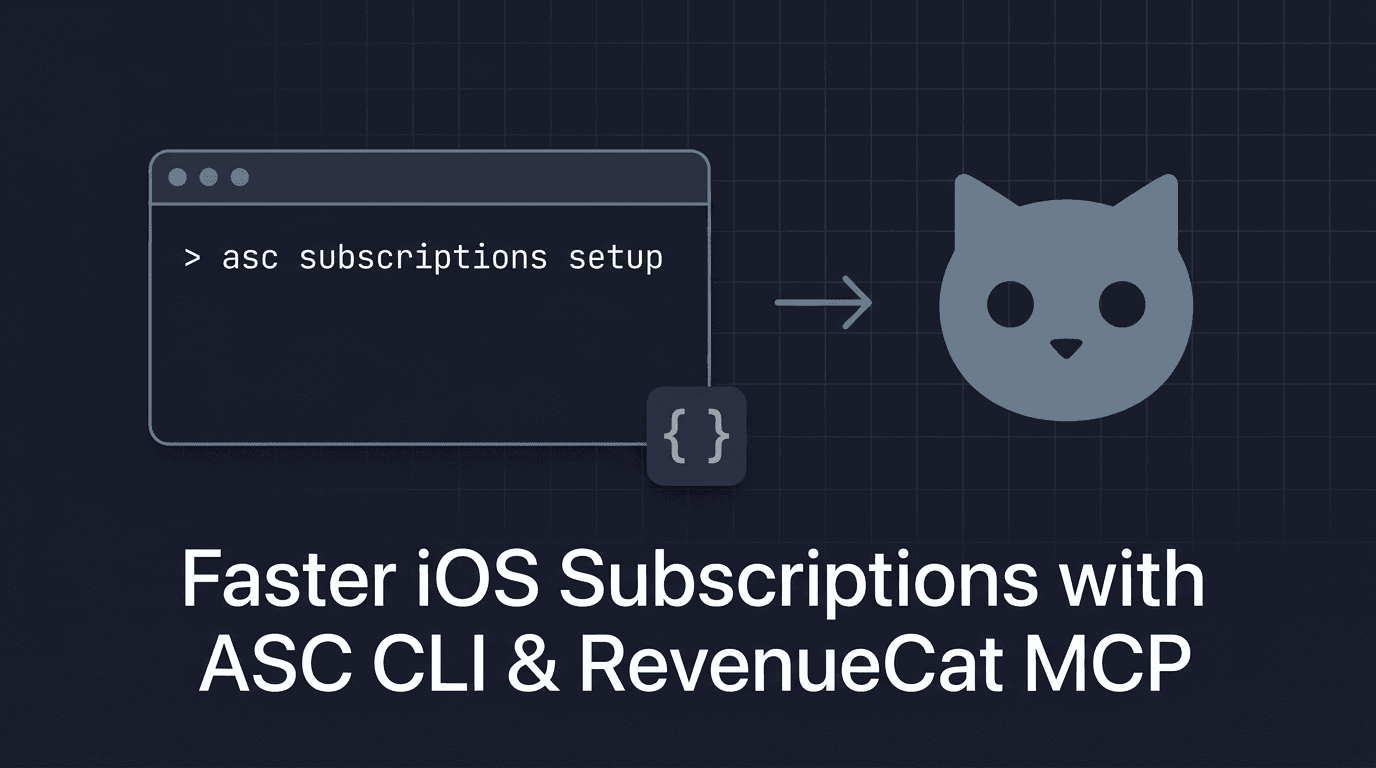
Before asc subscriptions setup existed, creating a subscription meant chaining five or six separate commands: create the group, create the subscription inside the group, add a localization, look up the price point ID for your target price, set the price, configure territory availability, and then verify everything was created. It was tedious enough that you would keep putting it off and batch subscription changes into big, infrequent sessions.
Now it is one command:
asc subscriptions setup \
  --app "APP_ID" \
  --group-reference-name "Pro" \
  --reference-name "Pro Monthly" \
  --product-id "com.example.pro.monthly" \
  --subscription-period ONE_MONTH \
  --locale "en-US" \
  --display-name "Pro Monthly" \
  --description "Unlock everything" \
  --price "3.99" \
  --price-territory "USA" \
  --territories "USA,CAN" \
  --output json
Under the hood, this single command:
- Creates the subscription group "Pro" if it does not already exist.
- Creates the subscription "Pro Monthly" inside that group.
- Adds an en-US localization with the display name and description.
- Resolves
$3.99to the correct App Store Connect price point for the USA territory and sets it. - Configures availability for USA and Canada.
- Verifies everything was created correctly by reading the state back.
If the group already exists, it reuses it. If the subscription already exists, it tells you. The command is idempotent enough that you can rerun it without breaking things.
The --output json flag is important and you keep that output because we use it to bridge into RevenueCat:
{
  "status": "ok",
  "groupId": "GROUP_ID",
  "subscriptionId": "SUB_ID",
  "productId": "com.example.pro.monthly"
}
That productId is the identifier both systems share.
What About Multiple Subscriptions?
For a typical app, you will ask your agent to run this command two or three times, once for monthly, once for yearly, maybe once for a weekly or an IAP for lifetime offering. Each run uses the same --group-reference-name so they all land in the same subscription group:
asc subscriptions setup \
  --app "APP_ID" \
  --group-reference-name "Pro" \
  --reference-name "Pro Yearly" \
  --product-id "com.example.pro.yearly" \
  --subscription-period ONE_YEAR \
  --locale "en-US" \
  --display-name "Pro Yearly" \
  --description "Unlock everything" \
  --price "29.99" \
  --price-territory "USA" \
  --territories "USA,CAN" \
  --output json
Within a minute, your entire subscription group and IAP is set up in App Store Connect!
Connecting RevenueCat
I will skip the full RevenueCat onboarding here as their quickstart guide covers it well. The short version:
- Create or select the app in RevenueCat (RevenueCat MCP can do this too via
mcp_RC_create_app). - Upload the In-App Purchase Key and Issuer ID for your Apple app. This lets RevenueCat validate receipts and pull product information from App Store Connect.
- Connect RevenueCat MCP using OAuth or an API v2 secret key.
If you have not set up RevenueCat MCP yet, RevenueCat has an official introduction and detailed docs on the MCP server.
The MCP server is cloud-hosted at https://mcp.revenuecat.ai/mcp. Add this to your .cursor/mcp.json:
{
  "mcpServers": {
    "revenuecat": {
      "url": "https://mcp.revenuecat.ai/mcp",
      "headers": {
        "Authorization": "Bearer YOUR_API_V2_SECRET_KEY"
      }
    }
  }
}
Replace YOUR_API_V2_SECRET_KEY with the secret key from your RevenueCat project's API Keys page. Cursor also supports OAuth for RevenueCat MCP, so if you prefer not to manage keys manually, that works too. Once Cursor detects the new MCP server, click Enable and you are good to go.
Keeping the Product ID Consistent
The one rule that makes this whole workflow work:
App Store Connect product ID == RevenueCat store_identifierIf asc subscriptions setup created com.example.pro.monthly, that exact string becomes the store_identifier in RevenueCat.
This sounds obvious, but when you are setting things up manually across two dashboards, it is surprisingly easy to introduce a typo or use a slightly different naming convention on each side. When I first set up Meshing's subscriptions, I had a mismatch between App Store Connect and RevenueCat that took me an embarrassingly long time to debug. With the CLI outputting the exact productId as JSON and the agent consuming that JSON directly, there is no room for the identifier to drift.
Letting RevenueCat MCP Wire Everything Up
With the App Store product created, you hand the JSON output from the CLI to the agent:
I created an App Store subscription with ASC CLI. Here is the output:

{
  "status": "ok",
  "groupId": "GROUP_ID",
  "subscriptionId": "SUB_ID",
  "productId": "com.example.pro.monthly"
}

Create the matching product in RevenueCat using that productId as the store_identifier.
Create entitlement "pro" and attach the product to it.
Create offering "default" with package "$rc_monthly".
Attach the product to the package.
Create a paywall for the default offering.
Summarize what you created.
The MCP tools map directly to RevenueCat concepts for products, entitlements, offerings, packages, paywalls. The prompt is explicit enough so that the agent calls mcp_RC_create_product, then mcp_RC_create_entitlement, then mcp_RC_attach_products_to_entitlement, and so on. Each tool corresponds to one RevenueCat API call, so the agent does not have to improvise or guess at the structure.
When it finishes, you get back a summary like:
- Product
prod_abc123created with store identifiercom.example.pro.monthly - Entitlement
procreated and product attached - Offering
defaultcreated with package$rc_monthly - Paywall created for the default offering
This is the part that used to take 15–20 minutes of clicking through the RevenueCat dashboard — navigating to Products, creating one, going back to Entitlements, creating one, attaching, going to Offerings, and so on. Now it takes about 30 seconds.
You can go from zero to a fully configured subscription setup — App Store Connect products, RevenueCat entitlements, offerings, and a paywall — in under five minutes. That includes both the CLI commands and the MCP calls.
What You Should Still Review
Agents are great at plumbing but even with this workflow, you should still manually review:
- Product naming — does
com.example.pro.monthlyfollow the convention you want across all your apps? - Pricing — $3.99/month is a starting point, but the right price depends on the market and what you have learned from RevenueCat's analytics and your own.
- Entitlement design — should "pro" be one entitlement or should you split it into granular entitlements for different feature sets?
- Paywall structure — does the generated paywall actually match the conversion story you want to tell?
The agent handles the mechanical setup but product decisions should stay with you.
What's Next
I am also exploring adding more subscription management commands to the CLI things like PPP pricing directly into it instead of an additional SKILL. The goal is to have your whole workflow in IDE/terminal, or even OpenClaw. Whatever you prefer.
If you are already using RevenueCat and you are tired of the dashboard dance, give this combination a try. The CLI is at asccli.sh!
Happy subscribing!
Post Topics
Explore more in these categories: